|
Import/Export |
Scroll |
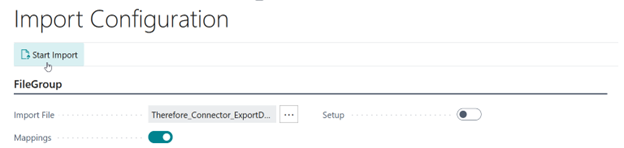
This feature allows import and export of Therefore™ Connector configurations from the 'Home Tab' and the 'Mappings' section of the Setup Tab.
Using the Import and Export functionality enables the following use cases:
•Transferring configurations between testing and production systems
•Copying configurations to different companies or tenants
•Saving backup configurations
Before using Import, the associated Therefore™ categories have to also be imported on the target system. The GUIDs of the categories and category fields are exported in Business Central and need to exist on the target Therefore™ system.
The Import and Export buttons can be found in the menu bar under Actions > Setup:
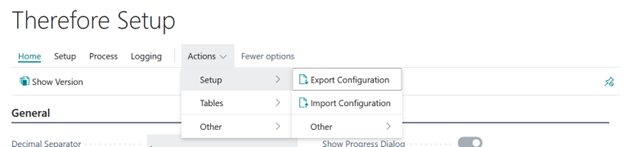
Export configuration
Export configuration exports all mappings as well as the setup from the 'Home Tab' into an XML file. Everything will be included and there are no further options.
The configuration has to be synchronized before exporting it.
Import Configuration
When importing a configuration, the first thing to do is to select an import file.
Subsequently, the user can choose if mappings or the setup from the 'Home Tab' should be imported:
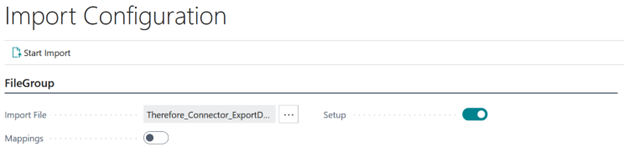
Either 'Setup' or 'Mappings' must be selected.
Secrets such as the password (for NAS) or Client ID and Client Secret (for OAuth2 / OpenID) are not exported. These values must be entered in the 'Home Tab' after importing.
The configuration needs to be synchronized after importing the setup and after entering the password.
For importing mappings it is required that the configuration is already synchronized. To do so, click the 'Synchronize Configuration' button.

When importing mappings choose which ones should be imported by ticking the checkboxes in the 'Import' column:
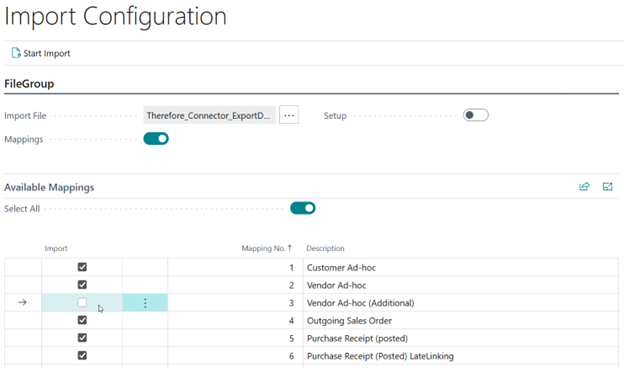
The 'Select All' button makes it easier to select or unselect all mappings.
The 'Description' is used to determine whether a mapping already exists. Existing mappings will be skipped.
After the desired mappings were selected the import can be started by clicking 'Start Import'.